Running checkmaite interactively
We've streamlined the process of running checkmaite
interactively. This allows you to explore and utilize the full capabilities of checkmaite workflows through a user-friendly web interface (UI).
To run checkmaite, we recommend setting up a virtual environment and installing the necessary dependencies, for detailed instructions, please refer to the Setup Guide.
Once you have the environment set up, you can start checkmaite by running the
following command in your terminal:
poetry run panel serve src/checkmaite/ui/app.py --show
If running a conda environment, you can replace the need for poetry run with conda run -n <env_name> --live-stream,
or if the environment is activated, you can simply use:
python panel serve src/checkmaite/ui/app.py --show
This command will launch checkmaite in your default web browser under
http://localhost:5006/app. If this port is in use, you can also specify the port, for example, --port 9000. You can
then interact with the application and run workflows directly from
the web interface.
Interactive UI workflow
The first step is to select which workflow you would like to work with:
- Model Evaluation (ME) to analyze model performance, robustness, and explainability using the JATIC tools MAITE, NRTK, and XAITK respectively.
- Dataset Analysis (DA) to understand and improve dataset quality by analyzing data biases, feasibility, shift, and cleaning statistics using the JATIC tool Dataeval.
All of these tools are available for both Image Classification (IC) and Object Detection (OD) tasks.
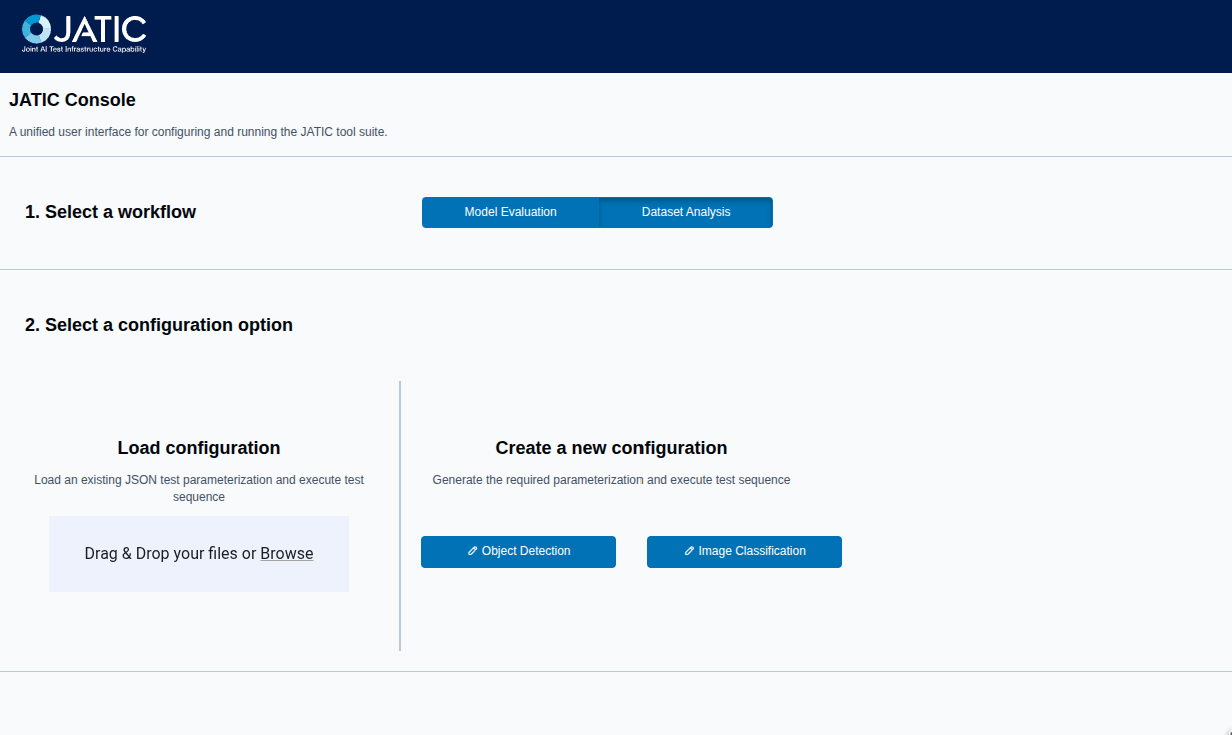
You can then select the desired workflow, and either load a pre-configured workflow parametrization JSON file or you can create a new configuration for this workflow.
Each configuration page will guide you through the necessary steps to set up the
workflow including any parameters
required for the workflow execution. Below is an example of the Model Evaluation (ME)
landing page, where you select which tools you would like to use:
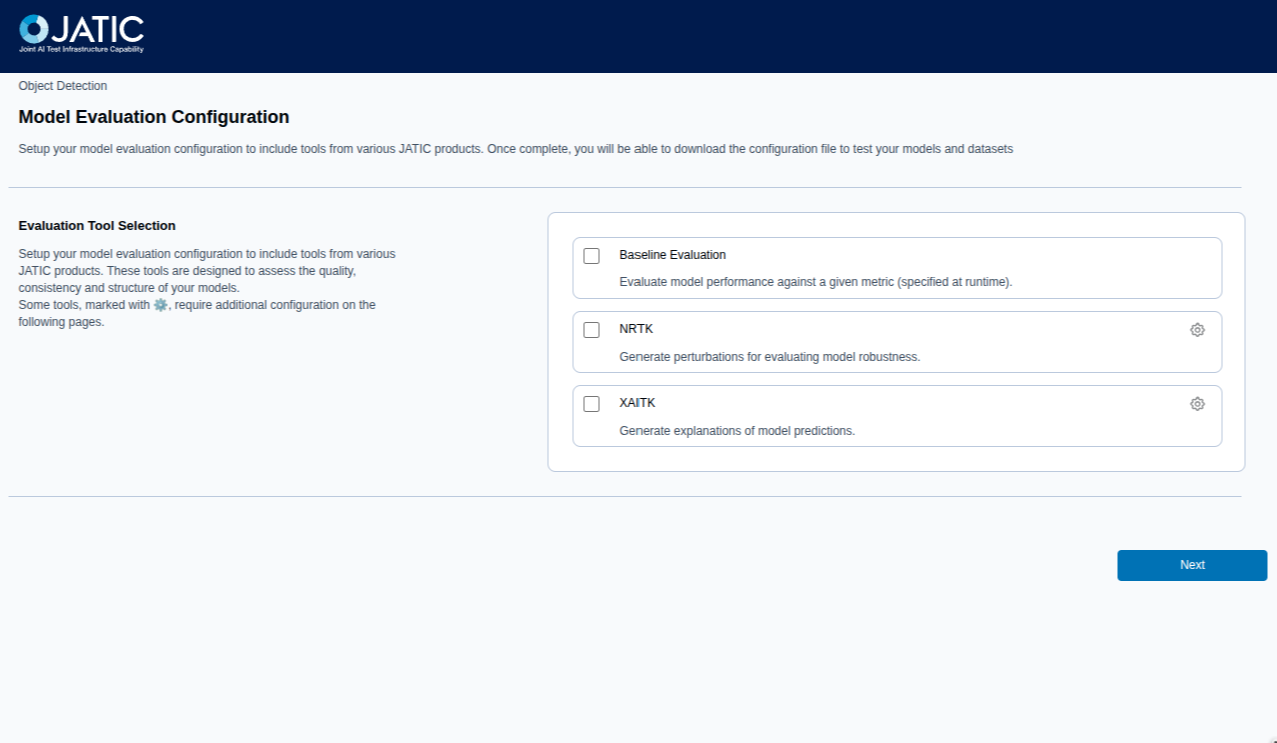
At end end of the configuration pipeline you will be presented with a summary of the configuration as a JSON block, and the options to select the model and datasets to use for the workflow.
You can then run the workflow by clicking the "Run analysis"
button. The application will then execute the workflow and generate a report with the results.
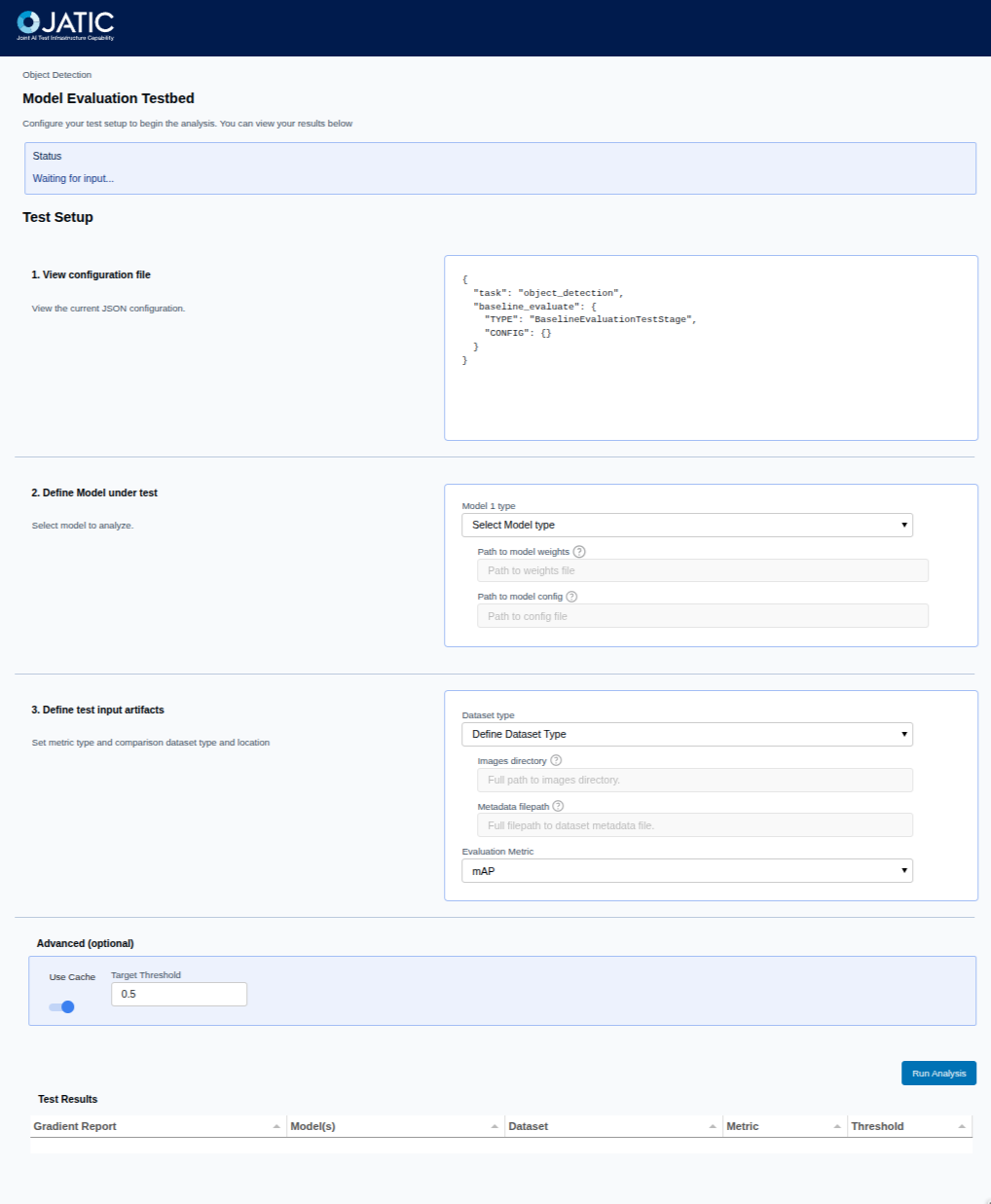
The Dataset Analysis workflow works in the same manner with different JATIC tools available.
For detailed information on how each tool is configured and operates, refer to the individual pages in the checkmaite documentation or the original tool’s documentation.